

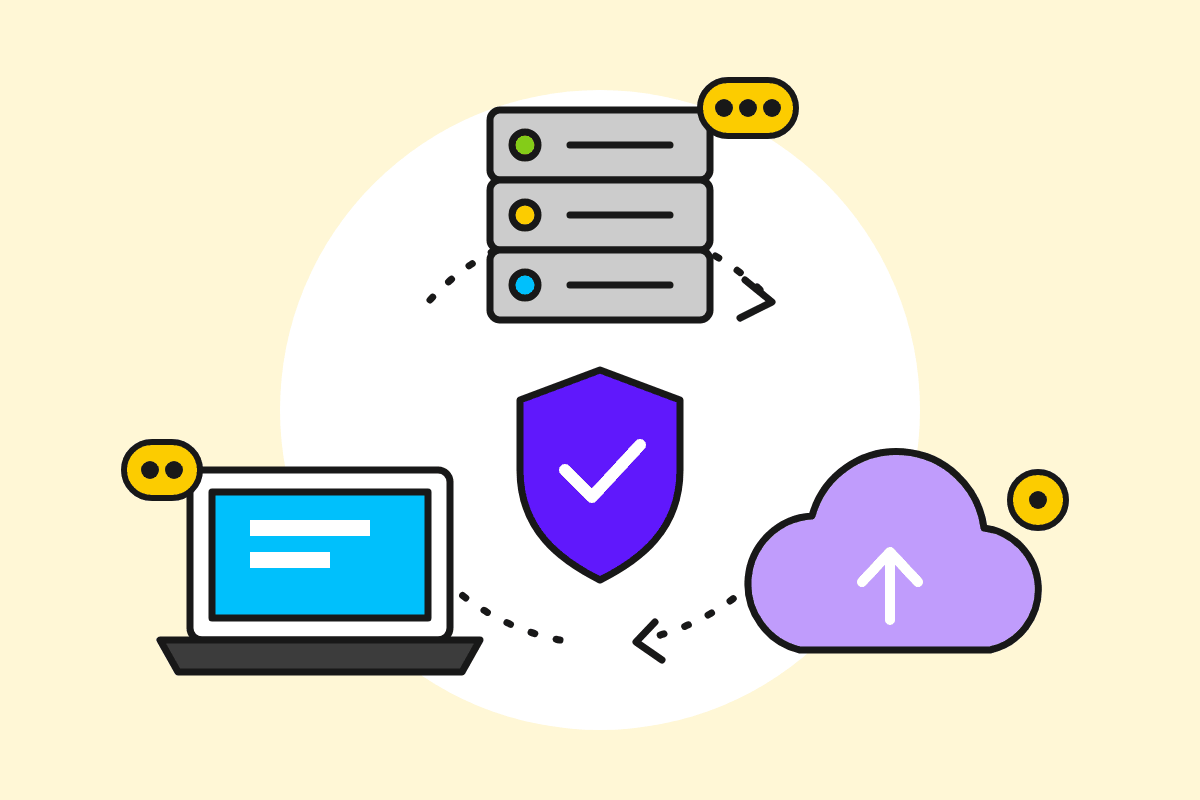
A good backup means you can bring back your site, database and e-mail after a mistake, an attack or a failed update. The 3-2-1 rule, a clear schedule and an occasional test restore will get you out of almost any situation.
Many site owners only find out they have no backup on the day they need one. The good news is that a simple backup system takes about an hour to set up and then runs almost by itself. Here's how.
Who is responsible for backups
Start with your contract. At GazduireOnline.ro, as with many hosting providers, our terms and conditions state clearly that you, the client, are responsible for keeping your own copies of your data. Even if a provider keeps copies on its side, those are meant for its infrastructure, not as your personal archive, and they may not cover the exact moment you need. So take your own copies and keep them off the server.
The 3-2-1 rule in plain words
- 3 copies of your data: the original (the site on the server) plus two more.
- 2 different storage media: for example your laptop and an external hard drive, or your laptop and a cloud storage service.
- 1 copy somewhere else: away from your office and away from the hosting server. A separate cloud storage account is the easiest option.
The idea is simple: a single problem (a compromised server, a stolen laptop, a fire, a hacked account) must not wipe out all your copies at once.
What to back up
| What | What's in it | Why it matters |
|---|---|---|
| Files | WordPress or your app, theme, plugins, uploaded images (usually in public_html) | without them the site won't run, and your photos are gone |
| Database | posts, pages, orders, customers, settings | for a shop this is the whole business; it changes daily |
| the mailboxes on your domain, with all folders | invoices, contracts and conversations with clients | |
| Configuration | DNS records, redirects, cron jobs, files like .htaccess and wp-config.php | saves you hours of rebuilding settings |
Files and database always go together. A file backup without the database from the same day gives you a site that doesn't match its content.
How often
The right question is: how much work can you afford to lose?
- Brochure site, rarely changed: a copy after every significant change and at least one a month.
- Blog with weekly posts: weekly.
- Online shop or booking site: database daily, files weekly.
- Always before updating WordPress, the theme or plugins, before changing the PHP version and before a move.
Keep several generations (for example the last 7 daily and the last 4 monthly), not just the latest one. If your site was infected two weeks ago, yesterday's copy won't help.
How to make a backup from the control panel
The exact steps vary between panels, but the logic is the same:
- Log in to your hosting control panel and find the backup section (for example, in cPanel: "Backup" or "Backup Wizard").
- Generate a full account backup or, separately, copies of your home directory (files), each database and your e-mail.
- Download the archives to your computer. Don't leave them only on the server: if the problem is the server or the account itself, you lose the copy too.
- As an alternative for the database, you can export it from phpMyAdmin (Export, SQL format).
- Put a copy in a second place too (external drive or cloud storage).
- Name the archives with the date, for example
site-2026-10-27.tar.gz.
Which backup options your panel offers depends on your plan, so check what your plan includes.
Automatic backups from WordPress
If your site runs WordPress, a backup plugin can make scheduled copies and send them automatically to external storage (Google Drive, Dropbox, an S3 bucket and so on). Well-known examples from the official directory are UpdraftPlus and Duplicator.
- Set the destination off the server; copies kept in the same account don't meet the 3-2-1 rule.
- Include both files and database.
- After the first run, check that the archives actually arrived and have a believable size.
Don't forget e-mail
WordPress plugins don't back up your mailboxes. You have two options: the e-mail backup in your control panel, or an e-mail client (Thunderbird, Outlook) set up with IMAP, from which you regularly export the important folders. If your e-mail runs on a service separate from your hosting, check what export options it has.
Test the restore
A backup you have never restored is just a hope. Every few months:
- Open the archive and check that it contains the files and the SQL file.
- Restore it to a test copy: a subdomain, a staging environment or a local server on your computer.
- Check that pages, images, the contact form and the admin login all work.
- Write down the steps and how long it took, so you know what to do on a bad day.
In short
- You are responsible for your own copies; don't rely on anyone else.
- Follow the 3-2-1 rule: 3 copies, 2 media, 1 away from the server and the office.
- Back up files, database, e-mail and configuration.
- Set the frequency by how much work you can afford to lose, and back up before every update.
- Test restores regularly.
Got a question about backups on your web hosting plan? Write to us at [email protected].





